How to See Your Event Schedule by Room
Pulling off a great event means tracking a hundred moving details. Without a system built for it, they scatter across notes, spreadsheets, and a dozen apps. Ripluo gives you one place for every event detail: timelines, checklists, and tasks, easy to find and ready to use.
When your event runs in more than one room, one long list stops being enough. You need to see what is happening in every space at the same time. That is what the By Room view does. Here is how to set it up.
By Room is included on the Plus, Pro, and Enterprise plans. Every plan can build schedules and view them as a list. Compare plans.
What the By Room View Shows You
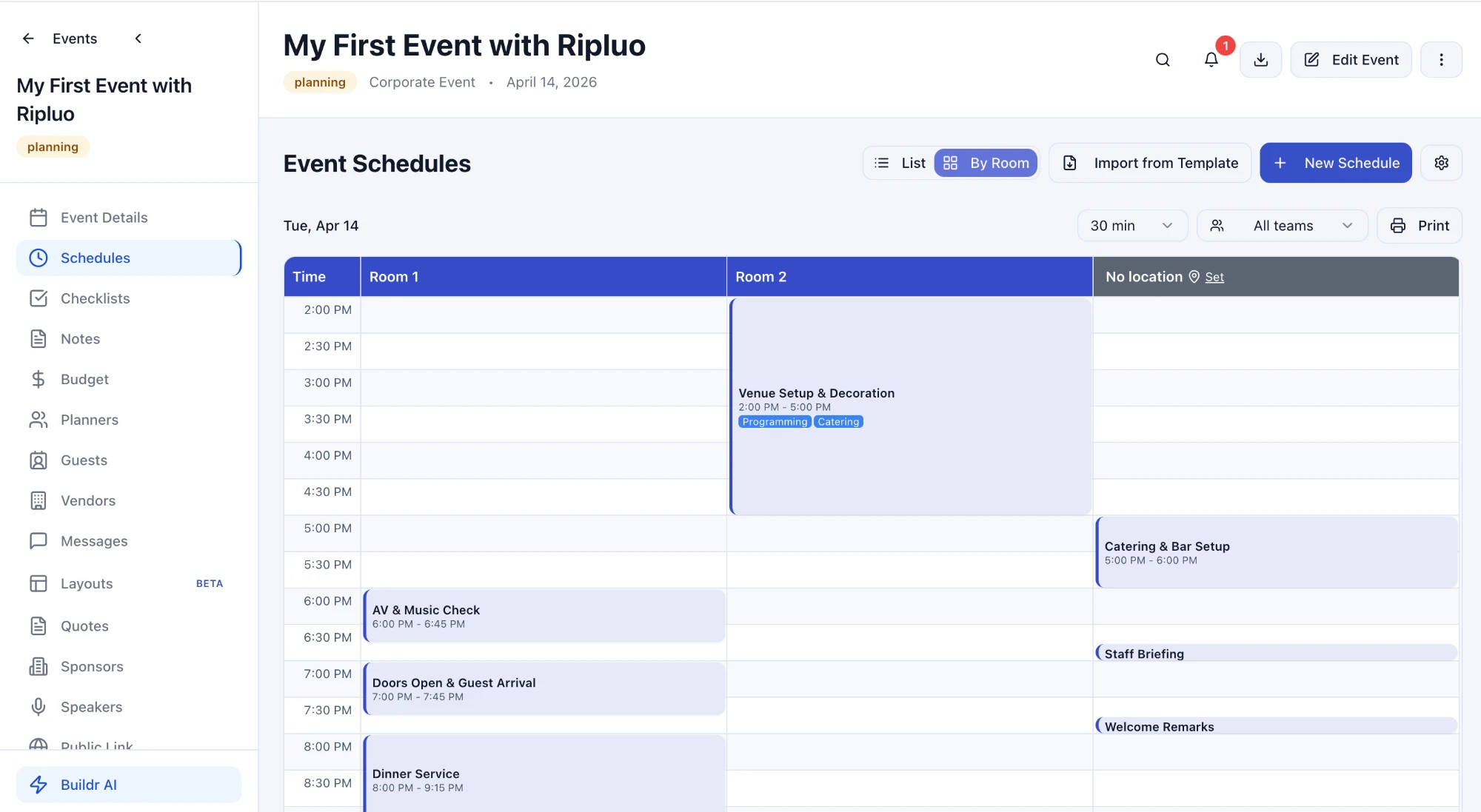
By Room turns your schedule into a grid. Each room gets its own column, and time runs down the left side. Every moment is drawn at its real length, so a three-hour setup looks like three hours and a 45-minute sound check looks like 45 minutes.
It is the same schedule you build in the list. Nothing is copied or duplicated. By Room also pulls in every schedule in your event for the day you are viewing, each in its own color, so your setup schedule and your guest-facing run of show appear on one grid. Multi-day events get a tab for each day.
Step 1: Add Your Rooms
Rooms are managed at the event level. Add every space you will use: the main stage, each breakout room, the ballroom, the lawn, the green room. If you have not done this before, the venue and room management tutorial walks through it.
Step 2: Set a Location on Each Moment
Open Schedules and give each moment a location. If you are new to building schedules, start with the dynamic run of show tutorial, which covers adding moments, people, and locations.
Do not worry about getting every one right the first time. Anything without a room is easy to find in the next step.
Step 3: Switch to By Room
At the top of the Event Schedules page, you will see a toggle with List and By Room. Click By Room. Your schedule redraws as a grid with one column per room.
Click List any time to go back. Use whichever view fits the job: the list for building and editing, By Room for checking who is where. Click any moment on the grid to open it.
Want the rooms in a different order? Hover a room name and use the arrows to move its column left or right.
Step 4: Clean Up the No Location Column
Moments without a room land in a column called No location. Think of it as your to-do list. Click Set in that column's header to give those moments a location. They move into the right room column. Keep going until the column is empty or only holds things that truly have no room, like an all-staff briefing.
Step 5: Check for Clashes
Ripluo checks the grid for you. If two moments are booked into the same room at the same time, or a team is due in two places at once, a warning appears above the grid with the count of room clashes and team double-bookings. Open it to see exactly which moments overlap.
A few more things worth a scan:
- Turnover time. If dinner ends at 9:15 PM and the next session in that room starts at 9:15 PM, your crew has no time to reset.
- Setup and load-in. Setup in one room while AV checks run in another is normal. Seeing it side by side helps you send people to the right place.
- Breakouts. Breakout sessions show up in their own rooms, labeled as breakouts. A moment that uses two neighboring rooms shows as one wide block across both.
- Empty rooms. An open column during a busy hour is a room you could use for overflow or a sponsor meeting.
Step 6: Zoom, Filter, and Print
Use the controls above the grid to fit the view to your event:
- Time interval. Switch between 15, 30, and 60 minute rows. Use 15 for a packed program, 60 to see the whole day at once.
- Teams. Pick a team, like Catering or Programming, to highlight that crew's moments and fade the rest.
- Print. Print the room grid for the day you are viewing and hand it to room captains, the AV crew, or the venue coordinator. If nothing opens, allow pop-ups for app.ripluo.com.
Who Gets the Most Out of By Room
- Conference and corporate planners running a main stage with breakouts. See the corporate events guide for building multi-track schedules.
- Wedding planners moving guests from ceremony to cocktail hour to reception across one property.
- Church and school teams running sessions, kids programs, and volunteer areas at the same time.
- Venues coordinating setup crews, catering, and AV across several spaces.
Get Started
Already on Plus or above? Open any schedule and click By Room. On the Free plan? Upgrade to Plus to unlock it. New to Ripluo? Create your free account and start building your schedule today. You can also read more on the By Room feature page.