Planner Invites vs Team Invites: Who Can See What in Ripluo
Planner Invites vs Team Invites: Who Can See What in Ripluo
You want help with an event, but you do not want a freelancer seeing your whole business. Or you hired a full-time coordinator who should see everything. Ripluo handles both cases with two different invites, and picking the right one matters. This guide explains exactly who sees what.
The Two Invites at a Glance
There are two completely separate ways to give someone access in Ripluo:
- Organization team invite (from Settings > Team): the person joins your organization as a member. They can see your organization's events and work alongside you day to day. Use this for employees and long-term teammates.
- Event planner invite (from inside a specific event): the person becomes a planner on that one event only. They never join your organization, and they cannot see any of your other events, your contacts, or your business data. Use this for freelancers, venue coordinators, and one-off collaborators.
The most important rule: an event planner invite never adds anyone to your organization. If the person is new to Ripluo, they get their own separate account and organization, with access to just the event you shared.
Organization Team Invites
To invite someone to your organization, go to Settings > Team, enter their email address under Invite Team Member (name is optional), and click Send Invitation. Pending and past invitations are tracked in the Team Invitations list right below.
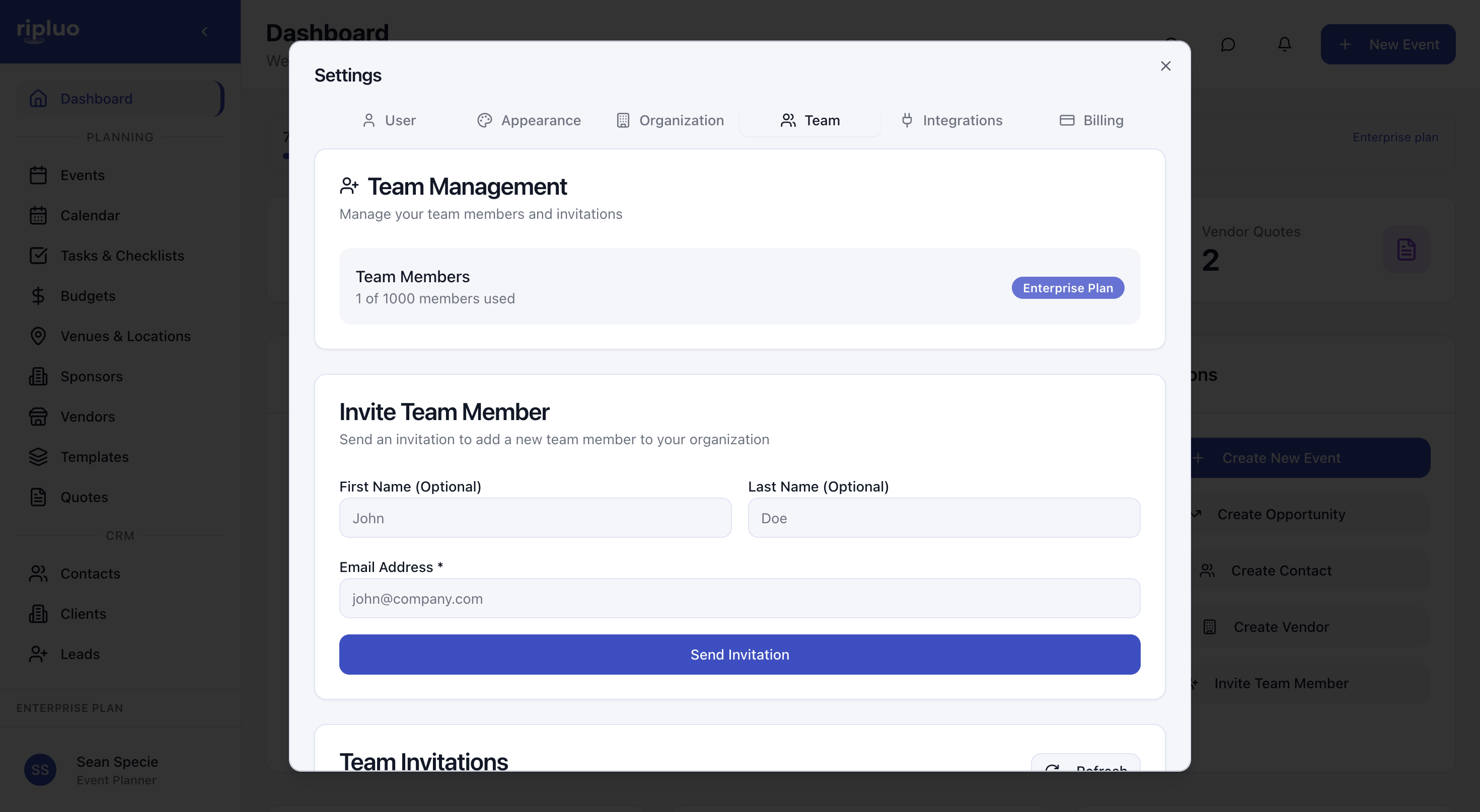
Once someone joins, the Team Permissions section on the same page controls what they can access - granular toggles covering things like viewing budgets, managing contacts, and deleting events. That means you can give a junior planner full scheduling access while keeping financials hidden. The account creator is the organization's owner, and only the owner sees billing and payment history.
If your invitee has not signed up yet, the invitation is waiting for them: when they create their account with that email address, they join your organization automatically. Companies can also use Join Requests - when someone from your company's email domain signs up, they can request to join your organization and you approve them from Settings > Team.
Team size by plan: Free includes 1 user, Plus 10, Pro 25, and Enterprise is unlimited.
Event Planner Invites
To bring a collaborator into a single event, open that event and click Planners in the event sidebar. As the page puts it: planners can view and edit this event alongside you. Invite them by email from the Planners tab, and they can collaborate on the schedule, tasks, and event messaging for that event, and nothing else.
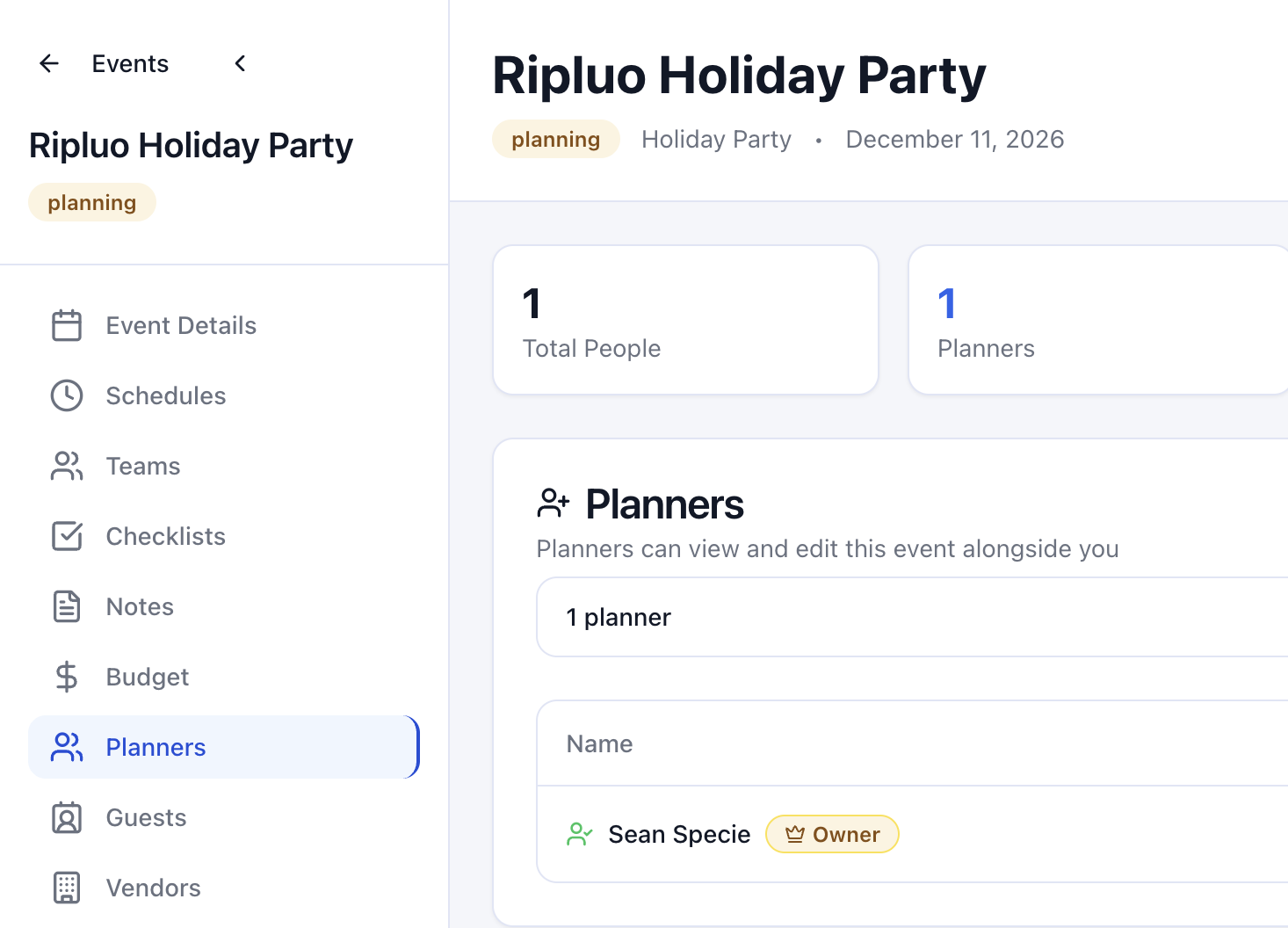
The event creator appears in the planner list with an Owner badge. Everyone you invite shows up in the same list, so you always know exactly who has access to the event.
Don't Confuse Planners with the Teams Tab
Inside every event there is also a Teams tab, and it is a different thing entirely. Teams is where you organize your day-of staff and volunteers and see each team's run of show across your schedules. As the page itself says: staff and volunteers are contacts only - they cannot log in or make edits.
So the full picture inside an event: Planners can log in and edit the event with you. Teams members are people you are coordinating (staff, volunteers) who receive assignments but never touch your account. And your organization team (from Settings > Team) works across all your organization's events.
Two extra controls apply to event planners:
- Role: planners can be regular builders or lead builders on the event.
- Financial visibility: you decide per event whether a planner can see budgets and money-related data. If you restrict it, they see the plan but not the price tags.
Planners per event by plan: Free allows 1 planner per event, Plus 10, Pro 25, and Enterprise is unlimited.
Which Invite Should You Use?
- Hiring an employee or long-term teammate: team invite.
- A freelance coordinator helping on one wedding: planner invite.
- A venue contact who needs to see the run of show for their event: planner invite, often with financials restricted.
- A business partner who manages your pipeline and invoicing: team invite (CRM tools live at the organization level).
Common Questions
I invited a planner to my event. Why can't they see my other events? That is by design. Planner invites are scoped to one event. If they need broader access, send them a team invite from Settings > Team instead.
Can someone be in two organizations? Yes. Ripluo supports multiple accounts with an account switcher, so a freelancer can have their own organization and still work inside yours.
Can I remove access later? Yes, both invite types can be removed at any time - team members from Settings > Team, planners from the event they were invited to.
Still unsure which invite fits your situation? Click the feedback icon in the top bar of the app and choose Chat with our team - we will point you the right way.