How to Use Buildr AI to Generate Schedules, Checklists, Budgets & Emails
How to Use Buildr AI to Generate Schedules, Checklists, Budgets & Emails
Starting from a blank page is one of the biggest time sinks in event planning. You know you need a schedule, a checklist, and a budget - but building them from scratch for every event takes hours. What if you could describe your event in a sentence and get a solid first draft in seconds?
That is what Buildr AI does. It is Ripluo's built-in AI assistant, and it is available on all plans, including the free plan. Free plan users get 3 Buildr AI conversations per event - upgrade to Pro for unlimited. Here is how to use it across every area of your event workspace.
Step 1: Open Buildr AI
Inside any event, click the Buildr AI button in the bottom-left corner of your workspace. This opens the AI assistant panel where you can choose what you want to generate.
Buildr AI works with four categories:
- Schedules and Timelines
- Checklists
- Budgets
- Other (including email templates and volunteer roles)
Step 2: Generate a Schedule
Select "Schedules and Timeline" and choose a prompt type - for example, "During Event Schedule" or "Pre-Event Setup Timeline."
Then describe your event in plain language:
"Create a day-of schedule for a 200-person fundraiser gala at a hotel ballroom, starting at 5 PM with cocktail hour and ending at 11 PM."
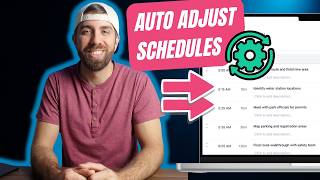
Click Send and Buildr AI generates a complete timeline with logical time blocks, durations, and descriptions. The schedule is loaded directly into your event - you can edit any moment, adjust durations, and let the dynamic time updates keep everything in sync.
Step 3: Generate a Checklist
Select "Checklists" and describe what you need:
"Create a planning checklist for a corporate product launch event for 500 attendees with keynote speakers, breakout sessions, and a networking reception."
Buildr AI produces a structured checklist organized by category - venue, catering, A/V, marketing, logistics, and more. Each task includes a description and can be assigned to team members, given due dates, and prioritized once saved to your workspace.
Step 4: Generate a Budget
Select "Budgets" and describe your event:
"Create a budget for a 150-person outdoor wedding with catering, floral, photography, DJ, and rentals."
Buildr AI creates a categorized budget with estimated amounts for each category. These are starting estimates you can adjust based on real vendor quotes and your client's budget. The structure gives you a comprehensive framework so you do not forget major categories.
Step 5: Generate Email Drafts
Need to send a vendor follow-up, a client check-in, or a sponsorship outreach email? Select "Emails" and describe what you need:
"Write a follow-up email to a catering vendor who has not responded to my quote request for a corporate event on March 15th."
Buildr AI drafts a professional email you can review, edit, and send. It is not a replacement for your own voice - it is a starting point that saves you from staring at a blank compose window.
Step 6: Iterate on Suggestions
Buildr AI does not expect to get it perfect on the first try. After reviewing the generated content, you can:
- Ask for changes - "Add a rehearsal dinner the night before" or "Remove the photography category"
- Request more detail - "Break down the catering section into appetizers, entrees, and desserts"
- Start over - Give a new prompt if you want to go in a different direction
Think of it as a conversation with an assistant who knows event planning. Each iteration gets you closer to exactly what you need.
Step 7: Save to Your Workspace
When you are happy with the result, click "Save" to add the generated schedule, checklist, or budget directly to your event. From there, it behaves like any other item you created manually - fully editable, assignable, and integrated with the rest of your event tools.
Get Started for Free
Buildr AI is included on all Ripluo plans - free plan users get 3 conversations per event, and Pro users get unlimited. Create your free Ripluo account and let AI handle the first draft while you focus on the details that make your events exceptional.
Frequently Asked Questions
Is Buildr AI free to use?
Yes. Buildr AI is available on all plans, including the free plan. Free plan users get 3 Buildr AI conversations per event. Upgrade to Pro for unlimited conversations.
Does Buildr AI replace my planning expertise?
No. Buildr AI gives you a strong starting point, but you are always in control. Every generated item is fully editable, and your expertise is what turns a good first draft into a great plan. Think of it as an assistant, not a replacement.
How specific should my prompts be?
The more detail you provide, the better the output. Include the event type, size, venue style, and any specific requirements. A prompt like "Create a schedule for a wedding" will give you something generic, while "Create a day-of schedule for a 150-person outdoor wedding at a vineyard with a ceremony at 4 PM and reception at 6 PM" will give you something much more useful.
Can I use Buildr AI for events I have already started planning?
Yes. You can use Buildr AI at any point to generate additional schedules, checklists, or budget categories for an event that already has content. The generated items are added alongside your existing work - nothing is overwritten.