How to Create, Brand, and Send Proposals
In This Tutorial
You just spent three hours in Canva building one beautiful proposal. Then you remember you have five more to send. A proposal should not take half your day. And every day it sits unsent, the client is talking to someone faster.
Ripluo's proposal builder loads your services, your pricing, and your branding into a clean template you can send with one click. Watch the video above for the full walkthrough, or follow the steps below.
Proposals are part of the Pro plan ($49.99/mo), which also includes contracts, invoicing, and the full CRM.
When to Use Proposals vs. Quotes
Before you start, pick the right document. Proposals and quotes do different jobs:
- Proposals sell. They carry your branding, your story, and your service packages. Send one early, while you are still winning the business.
- Quotes price. They focus on line items, taxes, discounts, and an expiration date. Send one when the client already knows what they want. Quotes can turn into invoices with one click.
Need to make an impression and show your value? Send a proposal. Need to hand over a number? Send a quote.
First, Catch the Lead
A great proposal starts before the proposal. It starts when the lead comes in. In Ripluo, go to Leads in the CRM sidebar, then open Form Manager to build a contact form for your website.
You choose how it works:
- Button or inline - show a button that pops the form open, or embed the whole form right on the page
- Your fields - name, email, phone, company, event date, event type, guest count, and a message, plus custom fields if you need them
- Required fields - mark the ones a lead must fill in before they can submit
When someone fills out the form on your site, they land in your Leads list automatically. You can also log leads by hand. For the full setup, see lead capture and conversion.
Turn a Real Lead into an Opportunity
Not every form fill is a real lead. When one is, open it and click Convert to Opportunity. Ripluo creates the contact and drops the opportunity into your sales pipeline, where you can set the stage, the value, and the win percentage, assign a teammate, and log every call and note.
Then add your products and services to the opportunity. In the video, that is an AV package, a bartender at $45 an hour for six hours, and a barbecue station at $20 a person for 300 guests. Ripluo does the math and shows the total. Pull items from your service catalog so you never retype your pricing.
This matters for the next step: the proposal can pull all of this in for you.
Create the Proposal
From the opportunity, click Create Proposal. You can also start from the Proposals page in the CRM sidebar. Start from scratch the first time, or from a saved template once you have one.
The builder walks you through a few short steps. Here is each one.
Step 1: Pick Your Template and Style
A generic document does not win new business. Your proposal should look like you:
- Brand colors - use your saved colors or customize any of them
- Typography - pick a font that fits your brand
- Logo - upload it once and it sits at the top of the proposal
- Company name and tagline - the first thing your client reads
Step 2: Fill In the Event Details
Pick the client. If they are already a contact, select them. Link the related opportunity and click Pull from this opportunity, and Ripluo fills in what you already collected so you are not typing it twice.
Then round out the event: name, date, start and end time, venue, a short description, and an event image. You can also set a valid until date so the offer has a deadline.
Step 3: Mirror the Client's Goals
This section is the quiet closer. On every sales call, ask the client what they want their event to do. Then write those goals into the proposal in their own words. From the video's gala example: help you raise a lot of money, serve your guests great food, and make sure everyone can see and hear clearly.
When a client reads their own goals in your proposal, they know you listened. You can add a photo from a past event here too.
Step 4: Show Your Services and Pricing
Your services and pricing from the opportunity appear here as line items, each with a name, description, quantity, and unit price. Add a short intro line, something like "We are pleased to offer the following services." Ripluo calculates the subtotals and the grand total, so nothing is left to manual math.
Step 5: Add Your About Us, Terms, and Snippets
Next comes your story. The About Us section is where your experience earns trust, along with photos from real events you have run. Then add your terms and conditions, like payment timing.
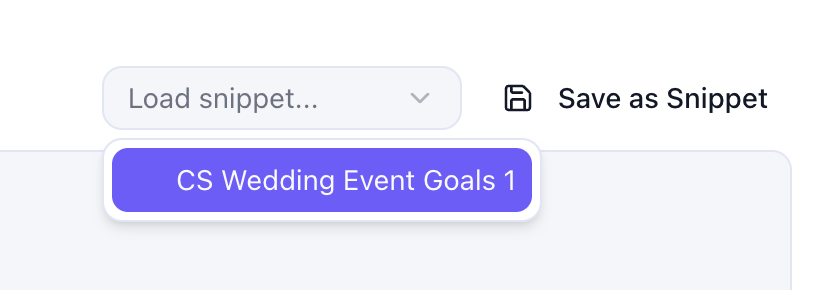
Typing the same paragraphs over and over? Text snippets fix that. Write a block once, click Save as Snippet, and load it into any future proposal from the Load snippet dropdown. Use them for goals, about sections, terms, anything you reuse.
Step 6: Add Client Reviews
Nothing sells you like a past client. Click Add Review and paste in what real clients have said, from Google reviews or anywhere else you collect them, with an optional photo. Hit save to your library and that review is ready to drop into every future proposal.
A proposal with your goals section and real reviews does the selling for you, even when you are not in the room.
Step 7: Save It as a Template
Run the same kind of event again and again? Click Save Template. If you do a lot of galas, save a "Gala Template" with the photos, the about section, and the wording you like. Next time, start from the template, swap the client details, and send in minutes instead of hours.
Step 8: Send, Track, and Get the Yes
Hit Preview to see the finished proposal exactly as your client will: your logo, your tagline, the event details, their goals, your services and investment, your about section, and your reviews.
When it is ready, send it as a shareable link. No attachments, no email chains. Ripluo tracks when the proposal is viewed and shows you its status, so you can follow up at the right moment instead of guessing. When the client clicks Accept Proposal, you get notified.
From Accepted Proposal to Signed Contract
An accepted proposal is a yes, but it is not a signature. The proposal is the beautiful one. The contract is the legal one. Once your client accepts, go to Contracts, create one from a template or from scratch, and collect the e-signature.
With the contract signed, you can move straight into invoicing and get paid. Lead, proposal, contract, invoice: one system, no copy-paste.
Get Started
Proposals are part of Ripluo's Pro plan at $49.99/mo, which also includes contracts, invoicing, and the full CRM suite. Ready to send your first branded proposal? Create your free Ripluo account to explore the platform and upgrade when you are ready to start closing deals faster.
Frequently Asked Questions
Can I customize the branding on each proposal?
Yes. Your organization branding applies by default, but you can change the logo, colors, and fonts on any individual proposal. This is useful for co-branded proposals or when you operate under multiple brand identities.
Can clients accept a proposal directly?
Yes. When a client opens the shared proposal link, they can review everything and click Accept Proposal. You get notified, and the status updates on your proposals list.
Is the proposal tool included in the free plan?
No. Proposals are part of the Pro plan ($49.99/mo), which includes the full CRM suite - proposals, contracts, invoicing, leads, and pipeline management. The free plan includes event planning tools like schedules, checklists, and budgets.
What is the difference between a proposal and a quote?
A proposal is a branded sales document designed to pitch your services and win new business. It includes your logo, colors, fonts, descriptive text, and service packages. A quote is a focused price breakdown with taxes, discounts, and an expiration date - used once the client knows what they want and just needs the numbers. Quotes can be converted directly into invoices; proposals cannot.
Can I reuse client reviews across proposals?
Yes. When you add a review, save it to your library. On your next proposal, pick it from your saved reviews instead of typing it again. Build the library once and every future proposal gets your best social proof.
Can I create a contract or invoice after a proposal is accepted?
Yes. Once a proposal is accepted, create a contract from the Contracts tab to collect the e-signature, then move into invoicing. The proposal does not convert directly, but everything you collected lives in your CRM, so you never re-enter it. If you need a direct conversion path to an invoice, send a quote instead.