What's New in Ripluo: Build Your Event by Chatting with Claude
Connect the Claude app to your Ripluo account and build your event by chatting. Paste in a spreadsheet and get your schedule, breakouts, tasks, people, rooms, and budget. Here is everything you can ask it to do.

Pulling off a great event means tracking a hundred moving details. Without a system built for it, they scatter across notes, spreadsheets, and a dozen apps.
Here is the part that really stings. Most of those details are already typed out somewhere. They sit in a spreadsheet a client sent you, or in a Word doc agenda. Then you open your event and type every one of them in again.
This update is about ending that. Everything below is live in your account right now.
| Update | What It Does | Shipped |
|---|---|---|
| Claude Connector | Connect the Claude app to your account and build your event by chatting. It reaches your schedules, breakouts, tasks, people, rooms, budget, and CRM. | July 24-31 |
| Gaps Close Themselves | Delete a moment from the middle of a schedule and everything after it moves up. No more dead air. | July 31 |
| Change Your Card | See the card paying for your plan and swap it in one click. We email you if a payment fails. | August 4 |
| Two Small Fixes | Map images load right after upload, and your embedded lead form glows in your brand color. | July 29, August 5 |
1. Paste Your Spreadsheet. Get Your Schedule.
I am planning a three day event right now. Five time slots. Twenty two rooms in every slot. More than 120 teachers. Over 70 breakout sessions.
All of it lived in one Excel file.
I did not type any of it into Ripluo.
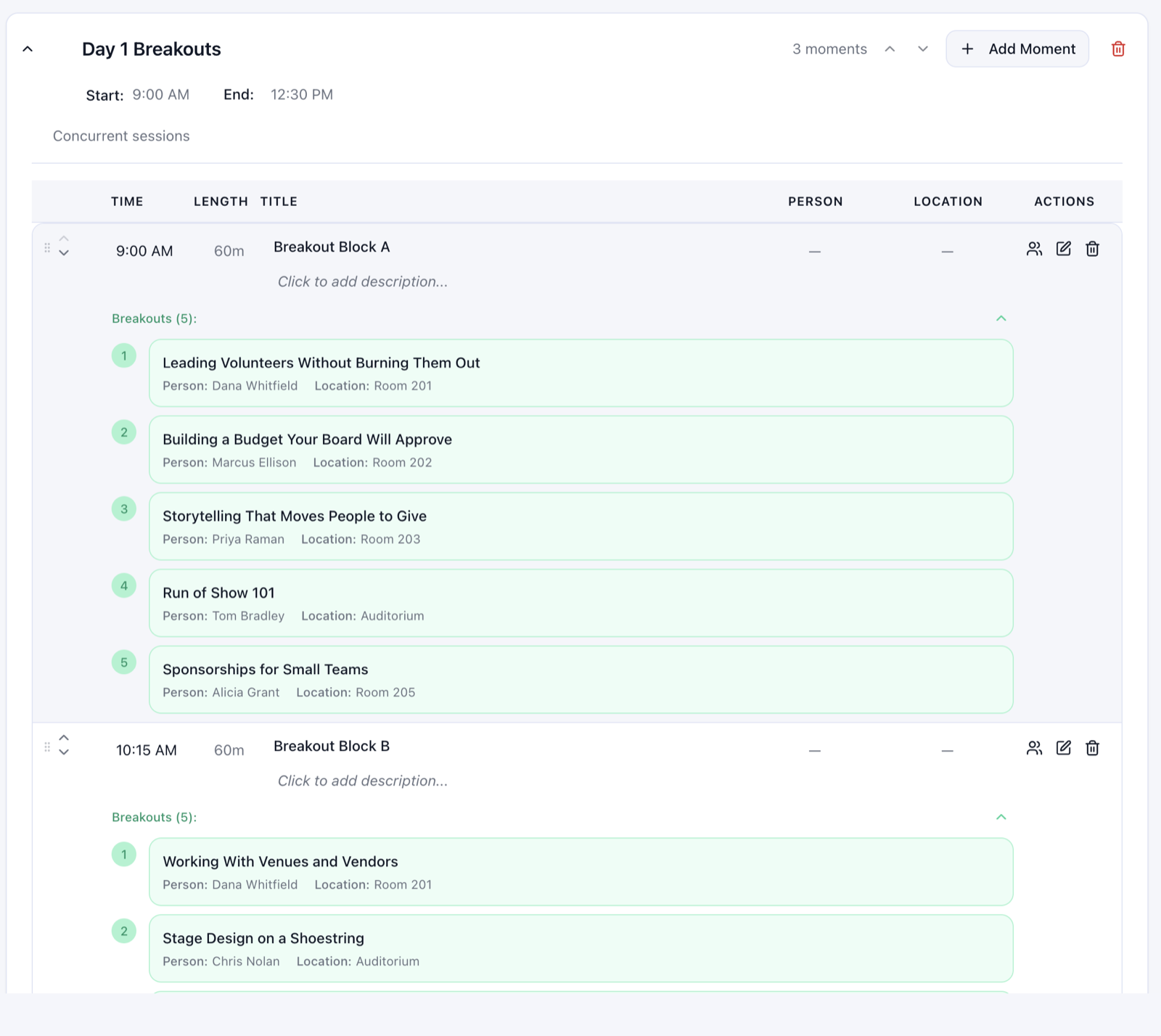
I connected the Claude app to my Ripluo account. Then I copied one time slot out of my spreadsheet, rooms and teachers and session titles and all, and pasted it into Claude. It built every breakout in that slot for me. Then I did the next one.
I pasted in the notes from my Word doc agenda too, and it updated the schedules I already had.
To turn it on, open Settings, go to Integrations, and generate your connector link. Paste that link into the Claude app once and you are done. It works in Claude Code too, and the same screen shows you how.
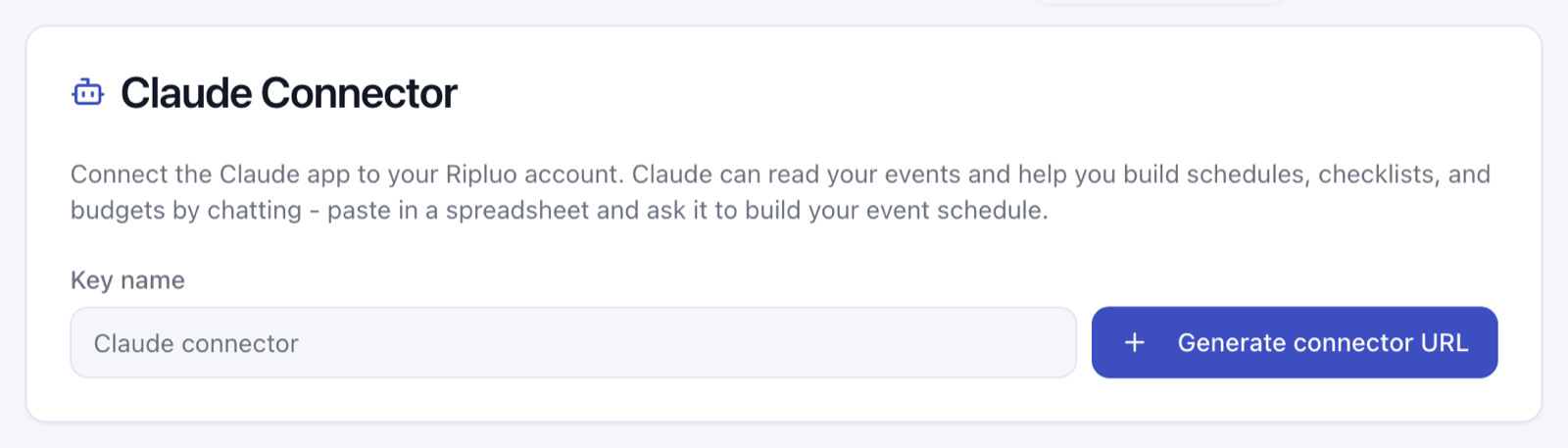
Shipped July 24-31. The Claude Connector is on Pro and Enterprise plans, and the account owner or an admin sets it up. You can switch a link off at any time from the same screen.
2. Everything You Can Ask It To Do
Breakouts were just my week. The connector reaches most of your event, so here is the full list of what you can ask for, and the kind of thing you would actually type.
Your schedule and run of show
Claude can read every schedule you already have and build new ones.
- Build a whole schedule from a list you paste in.
- Add one moment and slide it into position, without shifting the clock times of everything around it.
- Rename or retime a whole batch of moments in one go. If one entry is wrong, nothing changes at all, so you never end up half updated.
- Add a header row to break a long day into sections.
- Add a placeholder that holds its spot without using any time.
- Remove a moment you cut.
Try: "Here is our agenda from last year. Build me a day one schedule starting at 8am."
Breakout sessions
Breakouts are the sessions that run at the same time inside one slot, each with its own title, leader, and room.
- Create, change, or remove any breakout.
- Every leader name and room name you use is saved to your event lists on its own, so your pickers fill up as you go.
Try: "Here is block A from my spreadsheet. Make a breakout for each row with the teacher and the room."
Team instructions
These are the notes for one team on one moment. What the AV team does during the keynote. When catering starts the flip.
- Add, change, or remove an instruction for any team on any moment.
- They show up on your run of show views, so the right crew sees the right note.
Try: "On the keynote, tell the AV team to hold house lights at 50 percent until the intro video ends."
Tasks and checklists
- Build a full checklist, with priorities and due dates on each task.
- Add a single task, either on its own or inside a list you already have.
- Tie a task to a schedule moment, so the work and the timing live together.
- Break any task into subtasks, and tick them off.
Try: "Make me a load-in checklist for Friday and put the truck arrival task on the 6am moment."
People and rooms
- Keep your saved people with their roles and contact details.
- Keep your rooms and locations, with how many each one holds.
Try: "Add our five ballrooms with their capacities so I can assign sessions to them."
Budget and money
This is the part most planners do not expect. Claude can work your whole event budget.
- Build a budget of expense and revenue lines from what you paste in.
- Add, change, or remove categories, subcategories, and line items.
- Record what you actually spent, with the vendor and the date.
- Move money from one line to another. It writes both sides at once, so your numbers always agree.
- Log money you have committed but not yet paid, like a signed quote waiting on an invoice. When it is really paid, mark it fulfilled and it becomes a real transaction.
Try: "We signed the caterer for $8,400. Log it as committed, not paid."
Your client work
On Pro and Enterprise, it reaches your CRM too.
- Look up a contact by name or email.
- Pull up the deals in your pipeline.
- Draft an email for you to read and send yourself.
- Build a proposal with line items, ready for you to review and send.
Try: "Pull up the Henderson deal and draft a follow-up email about the date change."
The event itself
- Update the name, dates, guest count, budget, goals, status, or description.
Try: "Guest count went from 250 to 310. Update the event."
3. You Are Still the One in Charge
A tool that can build your event can also change it, so here is exactly where the edges are.
- It never sends anything for you. Emails come back as drafts. You read them and you send them.
- It can delete things, and deleting is permanent. There is no undo, same as deleting by hand. Ask it to show you first if you are unsure.
- Everything shows up in your account. Nothing happens in a place you cannot see.
- Your link is the off switch. Switch it off in Settings and Claude loses access that second. You can make a new one whenever you want.
- It only ever sees your own account. One link, your organization, nothing else.
4. Delete a Moment and the Gap Closes Itself
You cut the 45 minute welcome session. Everything after it used to stay right where it was, leaving 45 minutes of dead air in the middle of your day.
Now the rest of your schedule moves up to fill the space. One less thing to fix by hand.
Shipped July 31.
5. The Card Paying for Your Plan, in Plain Sight
Open Settings and go to Billing. You can now see the card paying for your Ripluo plan, including when it expires, and replace it in one click.
If a payment ever fails, we email you with the amount, the card that failed, and when we will try again. No more finding out the hard way.
Shipped August 4.
6. Two Small Fixes
- Map images now load right after you upload them.
- Your embedded lead form glows in your own brand color instead of blue.
Shipped July 29 and August 5.
Try It On Your Next Event
Everything above is live in your account today. If you have an event sitting in a spreadsheet right now, that is the one to try this on.
Not using Ripluo yet? The event tools are free forever on the free plan.